Lesson 03: Navigating the Operating System

Lesson 3/49 | Study Time: 30 Min
Lesson 03: Navigating the Operating System

Learning Outcomes


i. Comprehend the concept of graphical user interfaces (GUIs) and their role in operating systems


ii. Identify and understand the function of basic icons and navigation elements in a GUI


iii. Demonstrate proficiency in navigating the desktop and file system using common mouse and keyboard shortcuts


iv. Customize the desktop environment to enhance user experience and personalize the workspace


Introduction


The graphical user interface (GUI) serves as the bridge between users and the complex world of computers, transforming the once intimidating command-line interface into an intuitive and visually appealing environment. This lesson introduces the fundamentals of GUIs, exploring their components, navigation techniques, and desktop customization options, empowering users to navigate the operating system with ease and efficiency.


i. Concept and Components of Graphical User Interfaces (GUIs)


A GUI is a software application that enables users to interact with a computer through visual elements such as icons, menus, and windows, rather than relying on text-based commands. GUIs have revolutionized computing, making computers more accessible and user-friendly.


ii. Basic Icons and Navigation Elements in a GUI


Common icons found in a GUI include:


Desktop icons: Represent applications, documents, or folders stored on the computer.


Start menu or taskbar: Provides access to installed programs, system settings, and frequently used applications.


Window controls: Buttons for minimizing, maximizing, closing, and moving windows.


Menu bars: Contain options for performing actions within a specific application.


Toolbars: Provide quick access to frequently used functions.


Scroll bars: Allow users to navigate through long lists of items or documents.


iii. Navigating the Desktop and File System


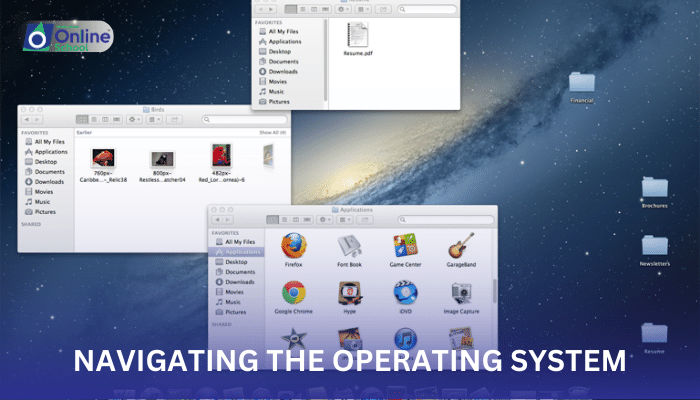
The desktop is the primary workspace of a GUI, displaying icons representing files, folders, and applications. To navigate the desktop and file system effectively, users can employ various mouse and keyboard shortcuts:


Double-click: Launches an application, opens a folder, or executes a document.


Single-click: Selects an item or brings it into focus.


Right-click: Opens a context menu with options specific to the selected item.


Drag and drop: Moves or copies items by clicking and holding the mouse button while dragging the item to a new location.


Keyboard shortcuts: Provide quick access to common actions, such as saving files, copying text, and navigating between windows.


iv. Customizing the Desktop Environment


Users can personalize their desktop environment to enhance their experience and tailor it to their preferences. Common customization options include:


Changing the wallpaper: Replaces the default background image with a personal photo or pattern.


Arranging icons: Organizes icons in a preferred layout for easy navigation.


Adding widgets: Displays small applications or information panels on the desktop, providing quick access to weather, news, or other updates.


Adjusting color schemes: Changes the overall color palette of the desktop and application interfaces.


Graphical user interfaces have transformed the way we interact with computers, making them more accessible and user-friendly. By understanding the components, navigation techniques, and customization options of GUIs, users can navigate the operating system with ease, personalize their workspace, and enhance their overall computing experience.


Saboor Ali

Saboor Ali

Product Designer

Class Sessions

1- Lesson 01: Introduction to Computers 2- Lesson 02: Understanding Operating Systems 3- Lesson 03: Navigating the Operating System 4- Lesson 04: Essential Operating System Functions 5- Lesson 05: Working with Files and Folders 6- Lesson 06: Installing an Operating System 7- Lesson 01: The Brain of the Computer: The Central Processing Unit (CPU) 8- Lesson 02: Memory: The Storage for Information 9- Lesson 03: The Gates to Interaction: Input/Output Devices 10- Lesson 04: Connecting the Components: AGP, PCI, and IDE 11- Lesson 05: The Sata Revolution: Sata Interface & Cable 12- Lesson 06: Memory Expansion: Memory Slots and Their Usage 13- Lesson 07: Ports for Communication: Serial, Parallel, PS/2, USB, and HDMI Ports 14- Lesson 08: Enhancing Performance: Sound Cards, Video Graphics Cards, Modem Cards, and Network Cards 15- Lesson 09: Storage Revolution: SSD Cards and SSD HDDs 16- Lesson 01: The Essential Software: Defining Operating Systems 17- Lesson 02: Windows and Linux: Exploring Operating System Types 18- Lesson 03: Demystifying Icons: Understanding Basic Operating System Icons 19- Lesson 04: Windows Installation: A Step-by-Step Guide 20- Lesson 05: Mastering Boot Options: Booting from Storage Media 21- Lesson 06: Partitioning and Formatting: Preparing the Hard Drive 22- Lesson 07: Selecting the Right Drive: Choosing the Appropriate Drive for Installation 23- Lesson 08: Device Drivers: Installing Essential Software for Hardware Components 24- Lesson 09: File Management Essentials: Copying, Moving, Renaming, and Searching 25- Lesson 10: Personalizing Your Workspace: Customizing Desktop and Display Settings 26- Lesson 11: Deciphering File Extensions: Understanding File Types 27- Lesson 12: Unveiling Hidden Files: Managing Hidden and System Files 28- Lesson 13: Device Manager: Managing Hardware Devices 29- Lesson 14: Task Manager: Monitoring System Performance 30- Lesson 15: Commanding the System: Utilizing the Command Prompt 31- Lesson 16: Understanding OS Updates and Upgrades: Distinguishing between Routine Updates and Major Upgrades 32- Lesson 17: Keeping the OS Current: The Process of Updating the Operating System 33- Lesson 18: Monitoring Storage Capacity: Checking Free Space on the Hard Drive 34- Lesson 19: Online OS Updates: Checking for Available Updates Online 35- Lesson 20: Booting Options: Booting from Storage Media or Internet 36- Lesson 01: Navigating Applications with Ease: Mastering Menus, Toolbars, and Dialog Boxes 37- Lesson 02: Undo: Restoring Mistakes with a Simple Click 38- Lesson 03: MS Office: A Suite of Essential Productivity Tools 39- Lesson 04: MS Word: The Wordsmith's Toolkit 40- Lesson 05: PowerPoint: Captivating Presentations Made Simple 41- Lesson 06: Excel: Mastering Data with Spreadsheets 42- Lesson 07: Mastering Font Styles and Sizes in MS Word 43- Lesson 08: Formatting Paragraphs for Enhanced Readability 44- Lesson 09: Enhancing Text with Inserting and Editing Tools 45- Lesson 10: Minimizing and Maximizing the Ribbon for a Streamlined Experience 46- Lesson 12: Adjusting Margins for a Tailored Document Layout 47- Lesson 13: Hyperlinking: Connecting Information across Documents and Websites 48- Lesson 14: Embellishing Documents with Watermarks 49- Lesson 15: Managing Documents: Effectively Organizing and Saving Files